How to Add a Website Shortcut Icon to Your Home Screen
Add a shortcut for your favorite website, customer portal, or ordering platform to your iPhone, iPad, or Android home screen for faster, app-like access.
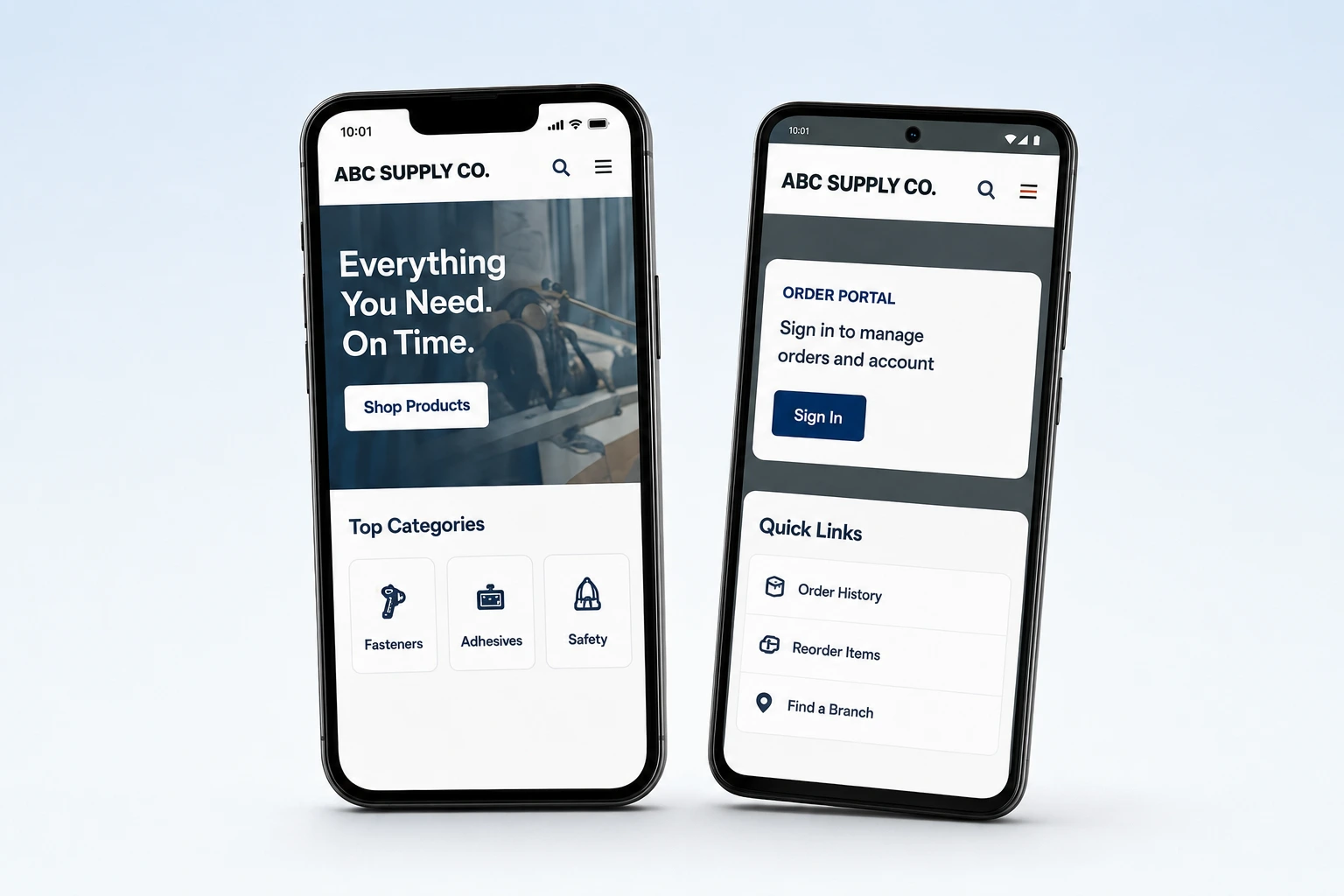
Why Add a Website Shortcut Icon to Your Home Screen?
Want faster access to a website, customer portal, ordering platform, or online tool? Adding a website shortcut icon to your home screen lets you open it with one tap without searching for the page or entering the URL every time.
A website shortcut icon works especially well for pages you visit regularly. It gives employees, customers, dealers, and sales teams a direct path to the exact online resource they need, while keeping access simple on both Apple and Android devices.
What to Know Before Adding the Shortcut
First, open the exact page you want users to reach. For example, a distributor may link directly to an ordering portal instead of the company homepage, while a sales representative may prefer a product catalog or inventory dashboard. Confirm that the page loads correctly, uses a secure connection, and works well on a mobile screen before saving it.
On an iPhone or iPad, open the page in Safari, tap the Share icon, and choose “Add to Home Screen.” On an Android device, open the page in Chrome, tap the three-dot menu, and select “Add to Home screen” or “Install app.” You can then review the name that will appear under the icon and shorten it if necessary.
The saved shortcut will appear alongside the other apps on the device. When selected, it opens the chosen webpage in the browser or in an app-like view, depending on how the website was developed. No app-store download is required for a standard shortcut.
Faster Access
Open your favorite sites with one tap instead of searching or typing the URL every time. The shortcut keeps frequently used pages easy to find.
An App-Like Experience
Shortcuts open in a clean, full-screen view that feels built for mobile.
Easier Ordering and Account Management
Quickly check order status, reorder items, manage accounts, and stay productive on the go.
Website Shortcut vs. Web App
A home-screen shortcut and a Progressive Web App can both make a business website easier to reach, but they offer different levels of functionality. The comparison below can help you understand which experience best fits your users.
| Feature | Website Shortcut | Web App (PWA) |
|---|---|---|
| Installation | Added from browser in seconds | May require installation or permission |
| Access | Opens in browser | Opens in app-like window |
| Offline Access | Usually requires internet | May work offline if supported |
| Best For | Quick access to any website | Advanced features, offline use, notifications |
Most business websites work perfectly as home-screen shortcuts. Progressive Web Apps offer deeper integration when advanced features are needed.
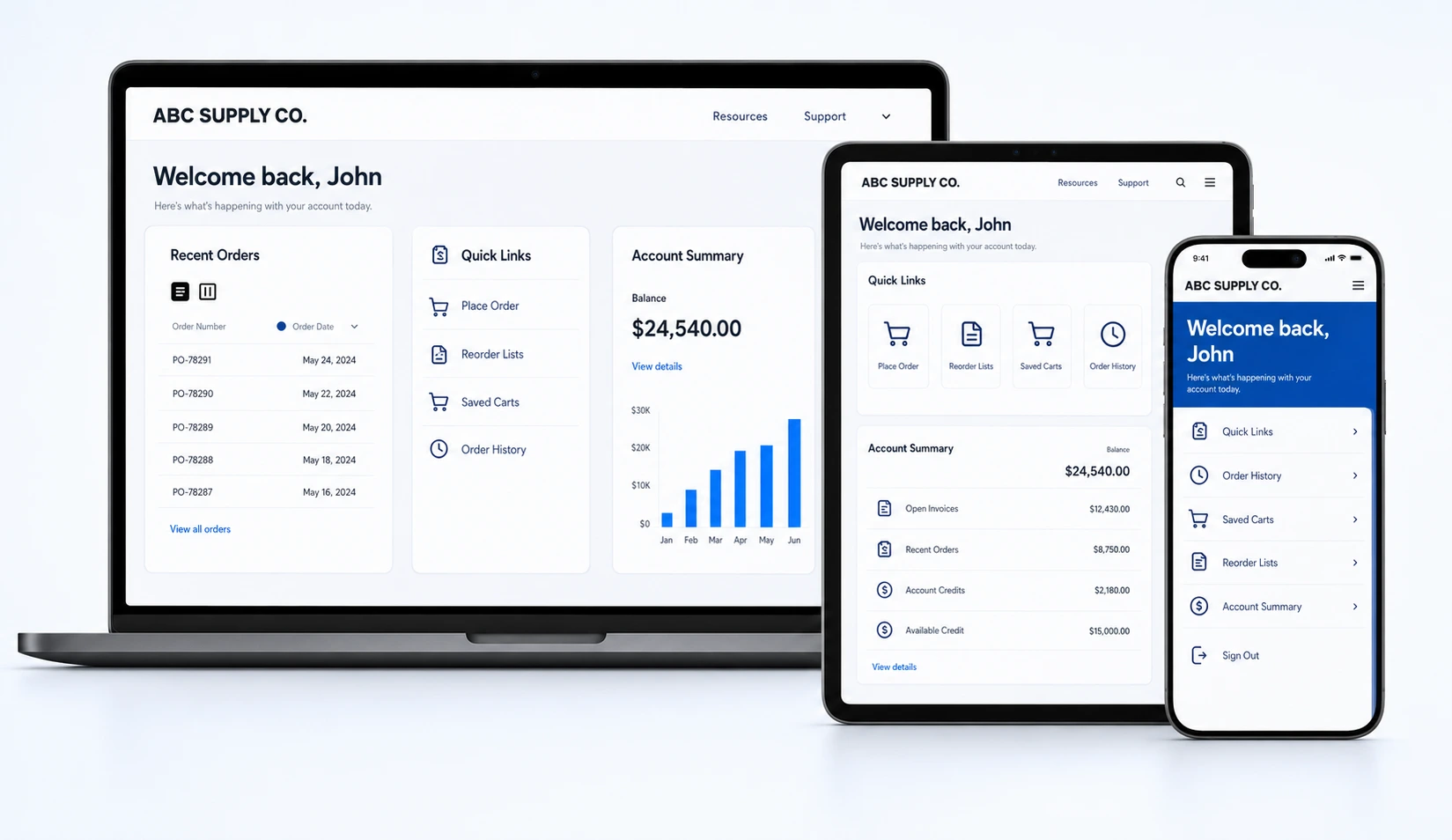
How Businesses Can Use a Website Shortcut Icon
A website shortcut icon can make it easier for your team and customers to access the tools and information they use most. Instead of navigating through several pages, users can open a specific portal, catalog, dashboard, or resource center directly from their home screen.
- Ordering portals for quick reordering and order tracking
- Product catalogs for browsing on the go
- Inventory and pricing tools for sales teams
- Dealer or distributor resource centers
- Technical documents and support libraries
- Account dashboards for billing and reporting
This simple option can reduce friction for people working in offices, warehouses, showrooms, job sites, or the field. It is also helpful for companies that want convenient mobile access without asking users to download a separate application from an app store.
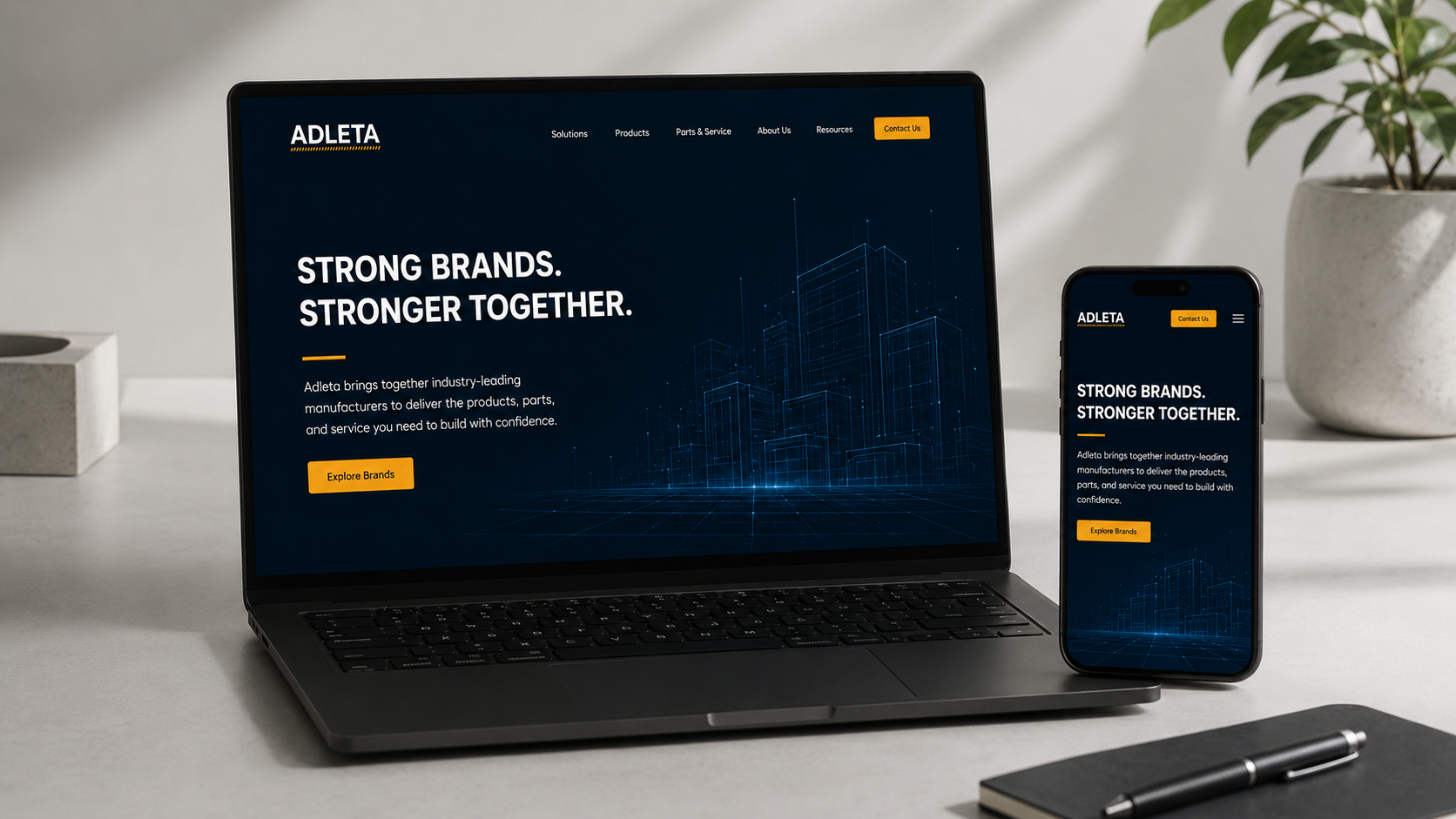
Make Your Website Easier to Use From Any Device
JAST Media creates mobile-responsive websites, online ordering systems, customer portals, and digital tools for manufacturers, distributors, retailers, and construction material brands. We can also help you prepare the right page and branded website shortcut icon for a clearer mobile experience.
Feeling Stuck?
We build custom solutions for manufacturers, suppliers, distributors, and dealers to be able to drive sales and scale their businesses.

Wholesale &
retail support
Drive sales at each level of the supply chain by maximizing sales support for the retailers, contractors, and installers who sell to your end users, with room scene visualizers, tech doc libraries, and more.

ERP AND POS
Integrations
Your website needs to be more than just promos and product lists. Show in-stock quantities, negotiated-rate pricing, minimum order quantities, and more with our 3rd party integration capabilities.

Customizable shipping
& fulfillment
We can tailor standard shipping and fulfillment options, as well as large scale warehousing, 3PL integration, palletized shipments, and a range of fulfillment options to fit the needs of large-scale supplier and cross-country logistics.

Payment, financing,
& quoting tools
Scale comes with complexity. But that doesn’t mean everything needs to be done manually by customer service reps. Streamline high volume sales teams with financing, payment terms, and build-a-quote functions.

Mobile-Responsive design
Having a beautiful, functional site is just half the battle. If your site isn’t also optimized for use in the field, you’re limiting your sales. We build from a mobile-first perspective, the current web standard.

Portal access
+ support included
Our clients have full access to make any needed changes on their sites, but we know your time might be better spent running your business, so support is included in our service contracts. Let us help!
Don’t just Build, Grow with JAST Media
Check out how we help clients sync, sell, and scale.


DON’T JUST BUILD,
GROW WITH JAST
Discover what’s shaping the future of construction. From case studies to award-winning innovations and forward-thinking ideas, find practical inspiration to drive sales at each step of the construction material supply chain.